
Payments - Add product manually
BACKOFFICE FEATURE: Ability to manually add a product on user and generating an associated transaction.
Why is this necessary?
BUG: User missing a product or a stripe refund problem etc.
PROMO: A donation, give away or advertisment purpose etc.
OTHER: Any other reason.
This guide will walk you through the process, so with no further ado…
ADDING PRODUCT TO USER
First of, navigate to user detail page. Either under the TAB ‘Playsite users’ or TAB ‘Site admins’ and select the user you want to add product to.
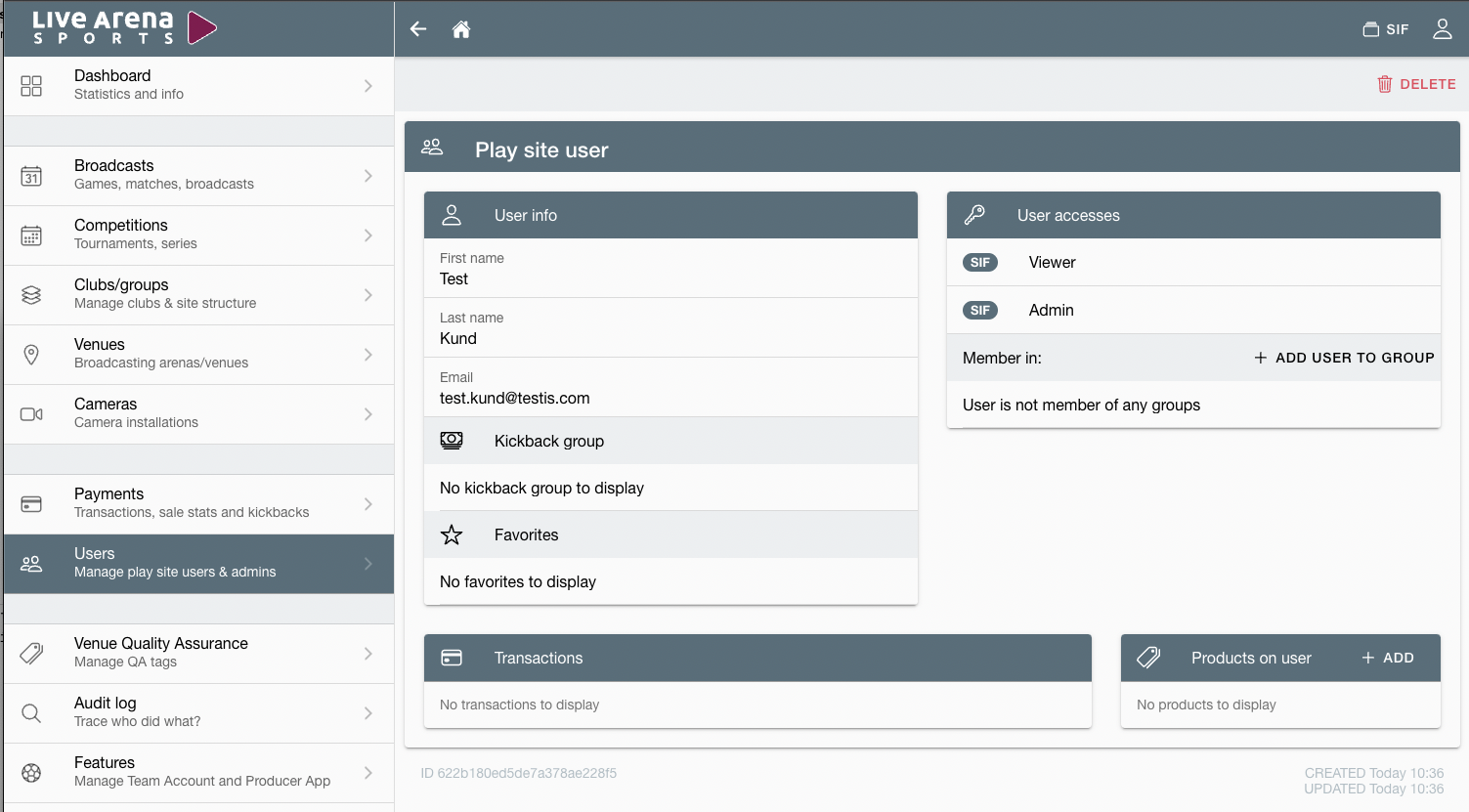
The card named ‘Product on user’ has a add-button.
Clicking on the button will open the modal which displays:
Available products for that specific page.
For PPV: if it does not require a broadcastId, its optional to tie the PPV to a broadcast/competition id.
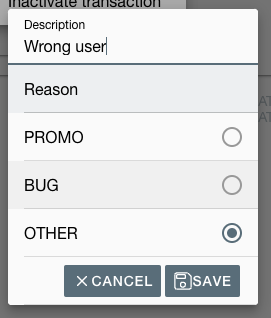
Reason: Input for description and selection of type of reason for adding product to user.
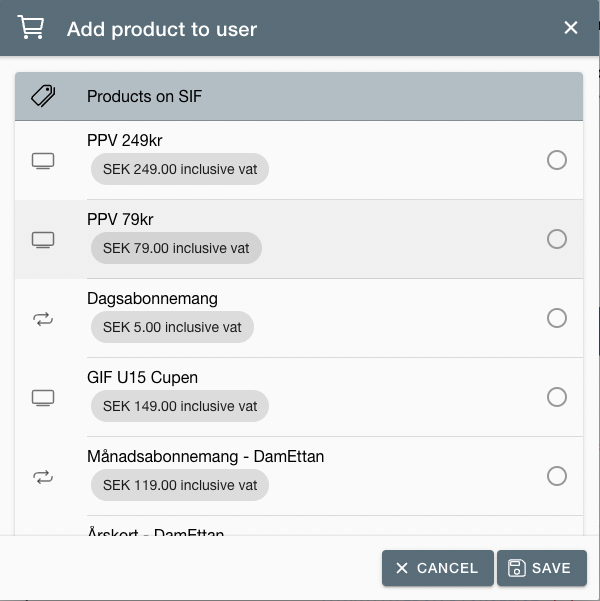
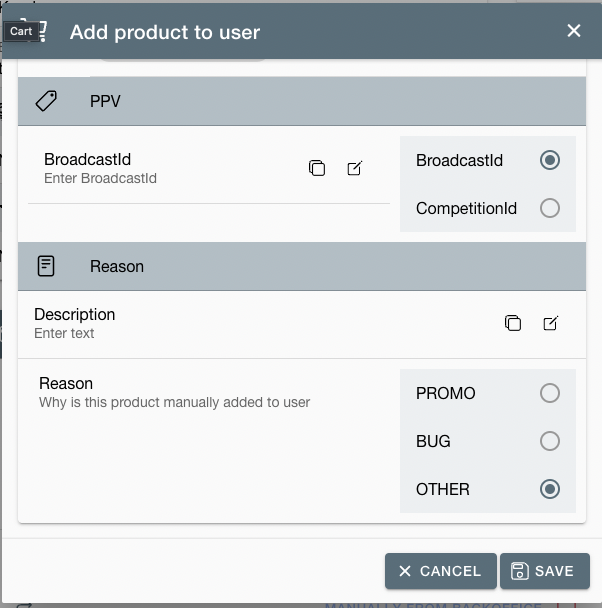
After selecting the product, adding a description and chosen type of reason, clicking on the save-button. This will add the product and generate a transaction called ‘Manually from Backoffice’.
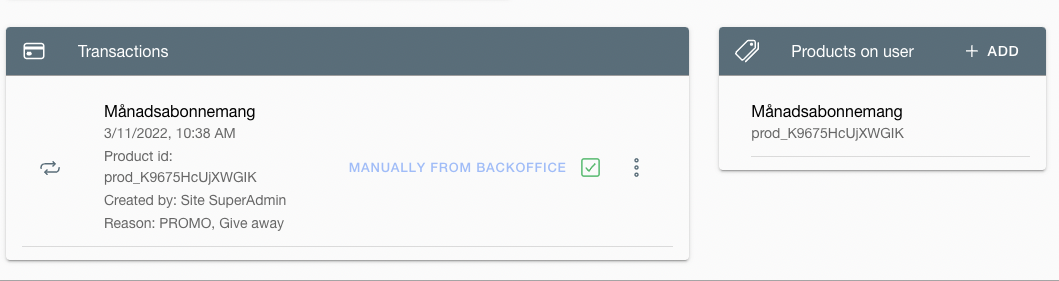
INACTIVATING TRANSACTION AND REMOVE PRODUCT
You can just as easily remove product from user and inactivate the transaction. This is done by clicking on the menu -con in the right corner of the transaction.
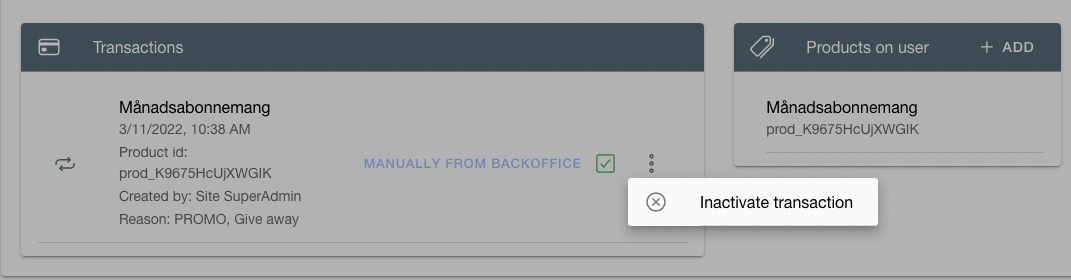
‘Inactivate transaction’ option opens a new popover where you can enter description for why you choose to remove product and select the type of reason.
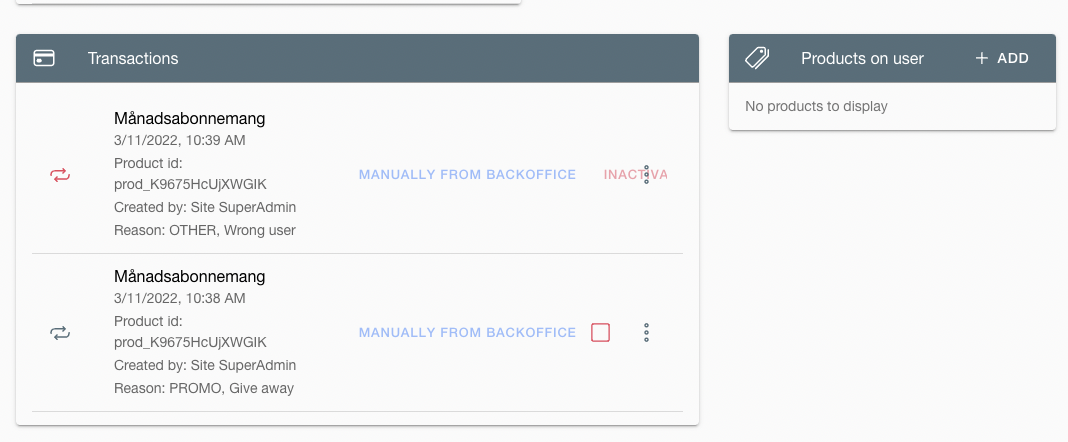
As you can se the product is immediatly removed from user and transaction is inactivated.